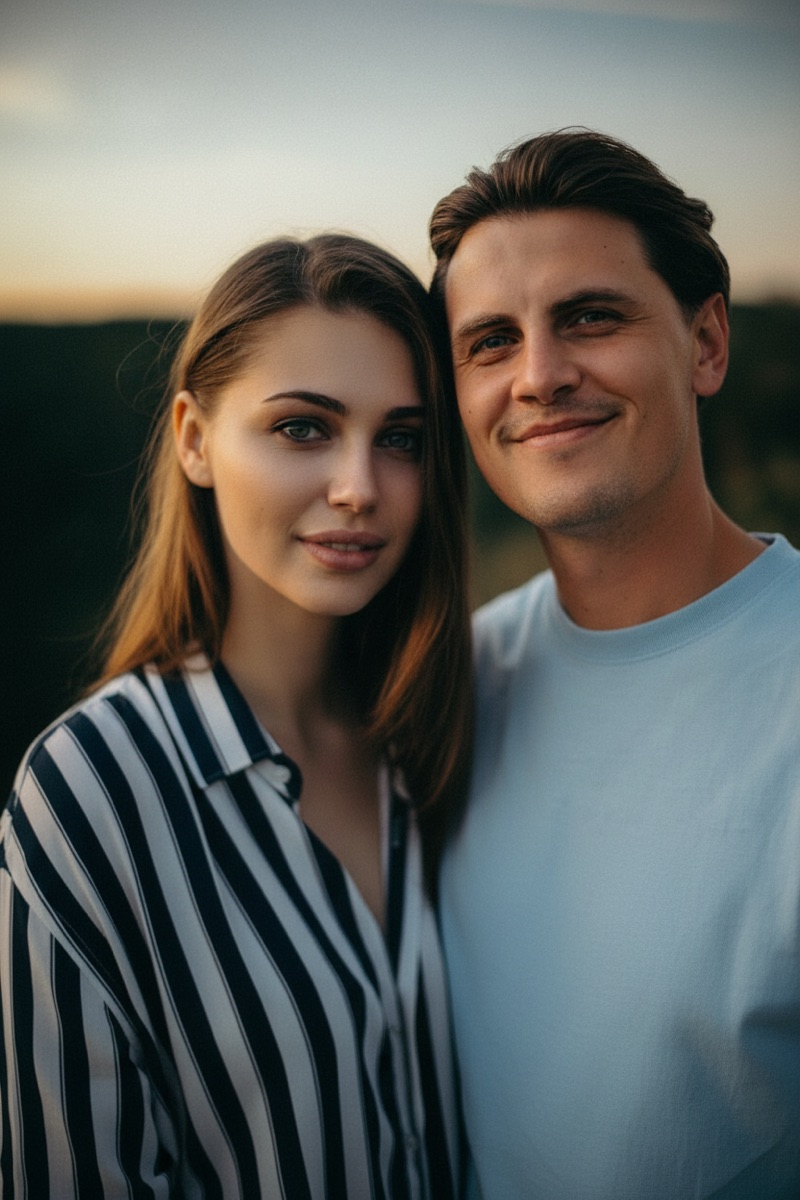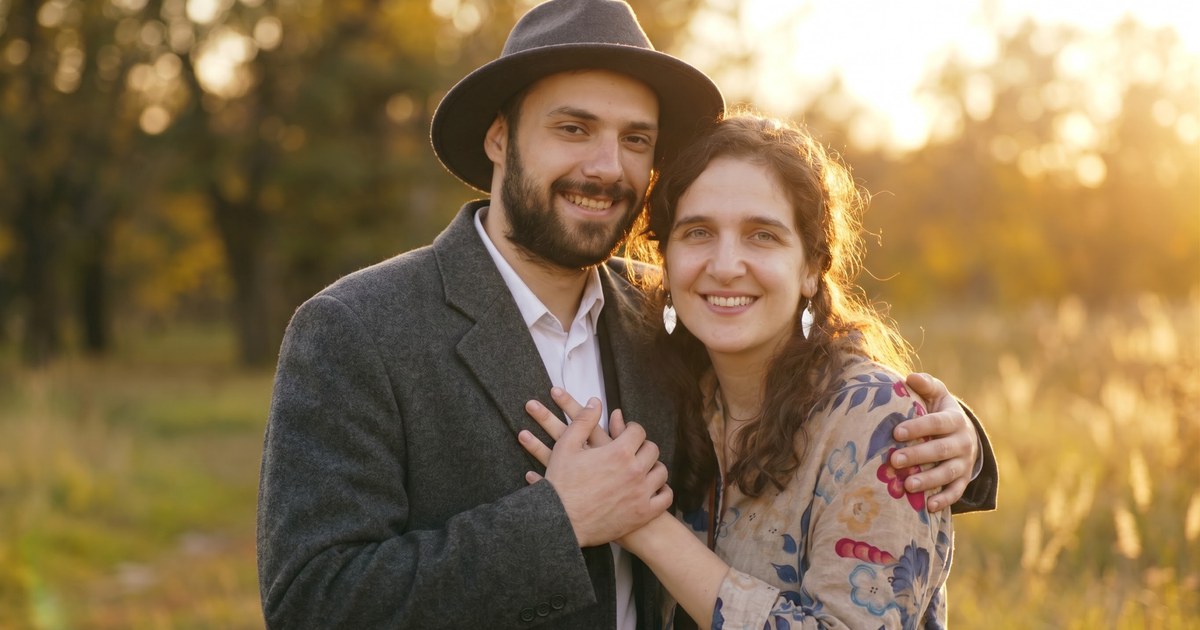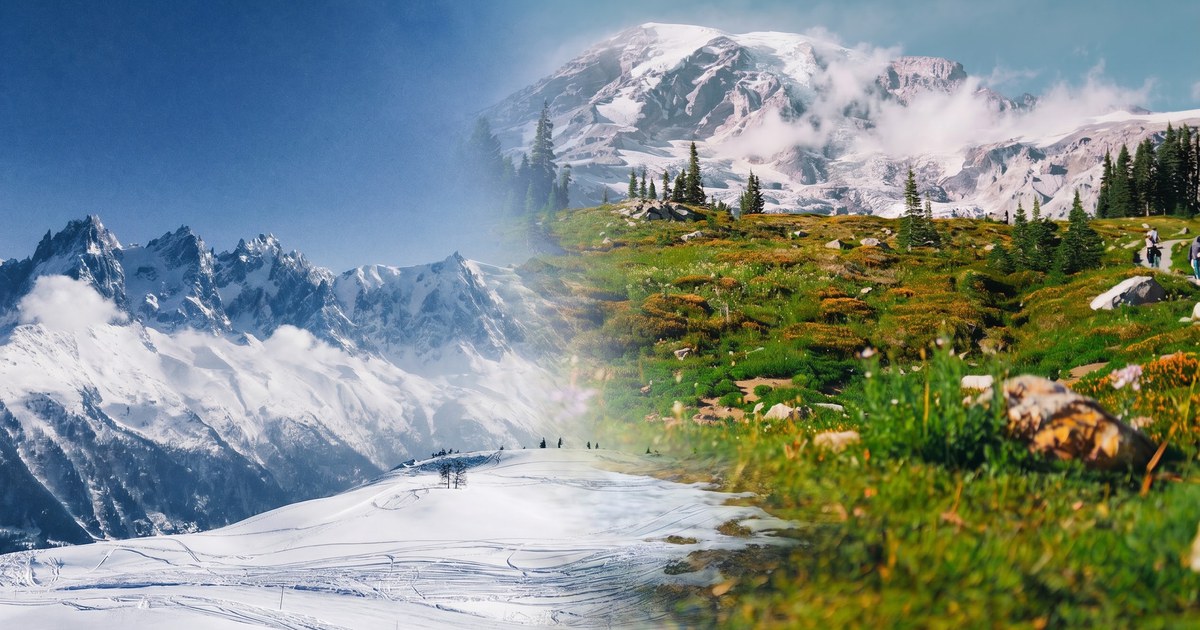

There are two ways to combine two photos into one: put them side by side — free, instant, and both photos stay exactly as they are — or merge them with AI into a single new photo that looks like it was taken in one shot, with matched lighting and perspective. This guide walks through both methods step by step and shows you when to pick each one. If you want to skip ahead, you can combine two images with AI right away and follow along with your own photos.

Method 1: Put Two Photos Side by Side (Free and Instant)
The simplest way to combine two photos into one image is to place them next to each other:
- Open the free side-by-side tool and select the Side by Side tab.
- Add your two photos — JPG, PNG, or WebP.
- Choose Horizontal (left and right) or Vertical (top and bottom).
- Set the spacing and background color, then tap Download PNG.
Combine Photos Side by Side — Free
This method is free, needs no sign-up, adds no watermark, and processes everything locally in your browser — your photos are never uploaded. It is the right choice when you want both photos visible in full, such as before-and-after comparisons, product comparisons, or a simple two-photo collage. For a full walkthrough including iPhone and Android methods, see how to put two pictures side by side.
Method 2: Merge Two Photos into One with AI
Side by side keeps the two photos separate. An AI image combiner does something different: it blends the subjects from both photos into one new, natural-looking image — matching lighting, shadows, skin tones, and perspective so the result looks like a single photograph.
This is the method for things like:
- A couple photo made from two solo photos
- Adding a missing family member to a group photo
- Placing a product photo into a real-life scene
- Putting a person into a travel destination they never visited
- A seamless before-and-after transition image
Here is how it works:
- Open the AI image combiner.
- Upload your two photos (up to 5 MB each).
- Describe the result you want in your own words — the scene, the pose, the mood. (Prefer ready-made presets like Couple Photo or Virtual Try-On? They live in the homepage tool.)
- Tap Generate. The AI creates your merged photo in about 10–60 seconds.
- Download the result. If it is not quite right, tweak your description and generate again.
Writing a good prompt makes the difference. Instead of "merge these two people," describe the scene you want: "Combine the two people into one natural couple photo, standing close together outdoors at golden hour, with matched lighting and skin tones." The more specific you are about the setting, pose, and mood, the better the result.
What about cost? The side-by-side stitcher is completely free — no payment, no credit card, and no hidden fees. AI merging starts with free trial credits for new accounts, then paid plans and credit packs when you need more.
Side by Side vs AI Merge: Which Should You Use?
| Side by side | AI merge | |
|---|---|---|
| Result | One image, both photos intact | One brand-new photo, subjects blended together |
| Time | Under 1 minute | 10–60 seconds per generation |
| Cost | Free | Free trial credits, then paid plans |
| Sign-up | Not required | Free account required |
| Best for | Before/after, comparisons, collages | Couple photos, group photos, product-in-scene, creative edits |
If you are showing a transformation or comparing two things, side by side is the answer. If you want two people or two elements to appear together in one scene, the AI merge is the answer.
Combining Photos on iPhone and Android
Both methods work on your phone:
- Side by side works in any mobile browser with no installation — open the stitcher in Safari or Chrome, add your photos, and download the PNG. See the iPhone and Android walkthrough for the details.
- AI merge works the same way: open the AI combiner on your phone, upload two photos from your camera roll, describe the result, and generate. No app download needed.
Frequently Asked Questions
How can I put two photos together for free?
Use a free online stitcher to place them side by side — no sign-up, no watermark, and it takes under a minute. If you want them blended into one natural photo instead, AI merging starts with free trial credits — just sign in and generate.
How do I merge two pictures into one?
The simplest merge is a side-by-side stitch in a free browser tool. For a seamless result where the subjects appear together in one scene, use an AI image combiner: upload both pictures, describe the result, and generate.
Can AI combine two photos into one?
Yes. An AI image combiner takes the subjects from two photos and generates a single new image, matching lighting, shadows, and perspective so the result looks like one photograph. It works for people, pets, and products.
Is there a free AI image combiner?
Yes — ImageCombiner is free to try: new accounts get free trial credits for AI merging. The side-by-side stitcher is always free, with no sign-up needed at all.
How do you combine two photos into one without Photoshop?
You do not need Photoshop. A free online stitcher places photos side by side in under a minute, and an AI combiner blends them into one natural photo — both run in your browser, with no software to install.
Can I combine two photos into one on my phone?
Yes. Both the side-by-side stitcher and the AI merge work in any mobile browser — open the tool on your phone, add two photos from your camera roll, and download the result. No app download required.
Does the AI image combiner add a watermark?
No. ImageCombiner does not add watermarks to your downloads — AI blends and side-by-side stitches are both watermark-free.
How long does AI merging take?
Most generations finish in about 10–60 seconds. If a generation fails, simply run it again — it costs you nothing.
Combine Your Photos into One
Whether you want two photos side by side or blended into a single natural image, both tools live on the same page — no software to install, no credit card to try. Ready to see your two photos become one? Open the tool to combine two images with AI and generate your first merge in under a minute.