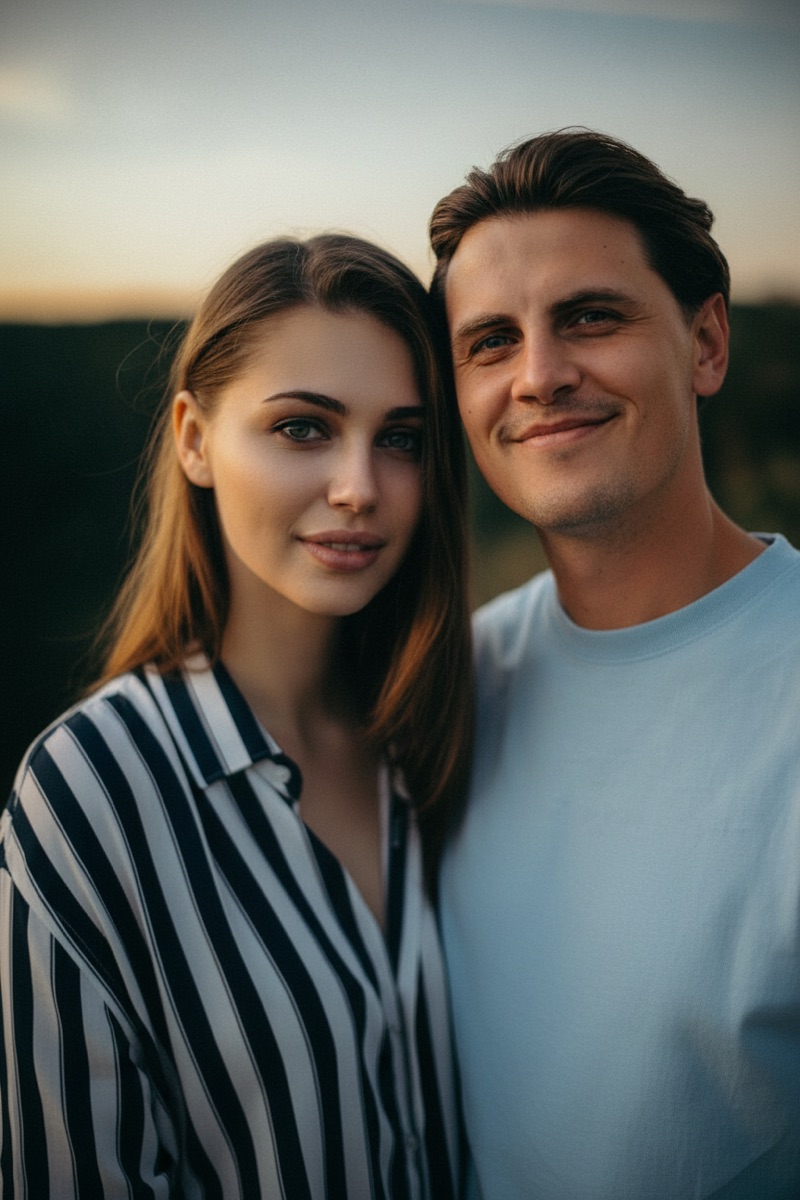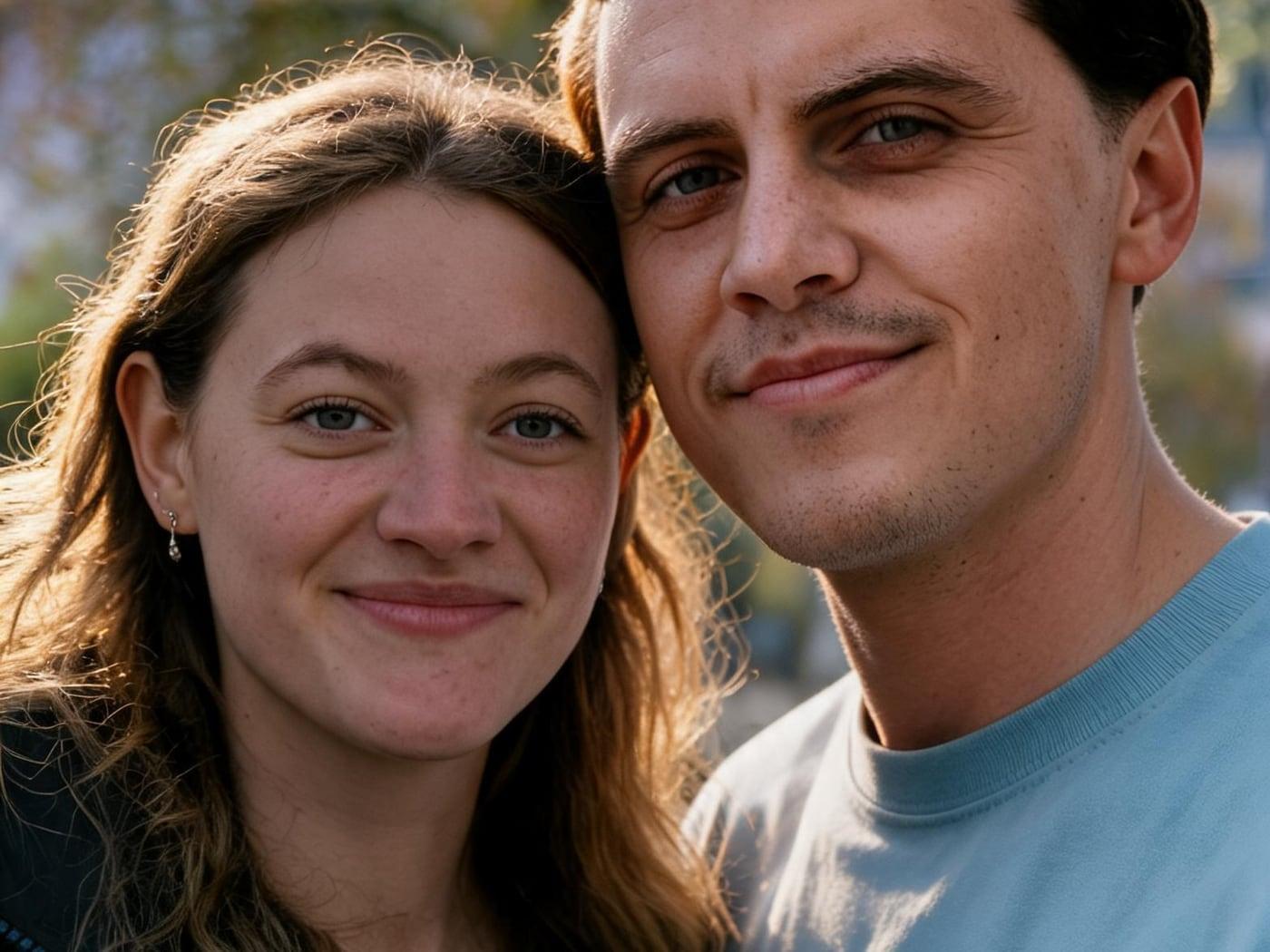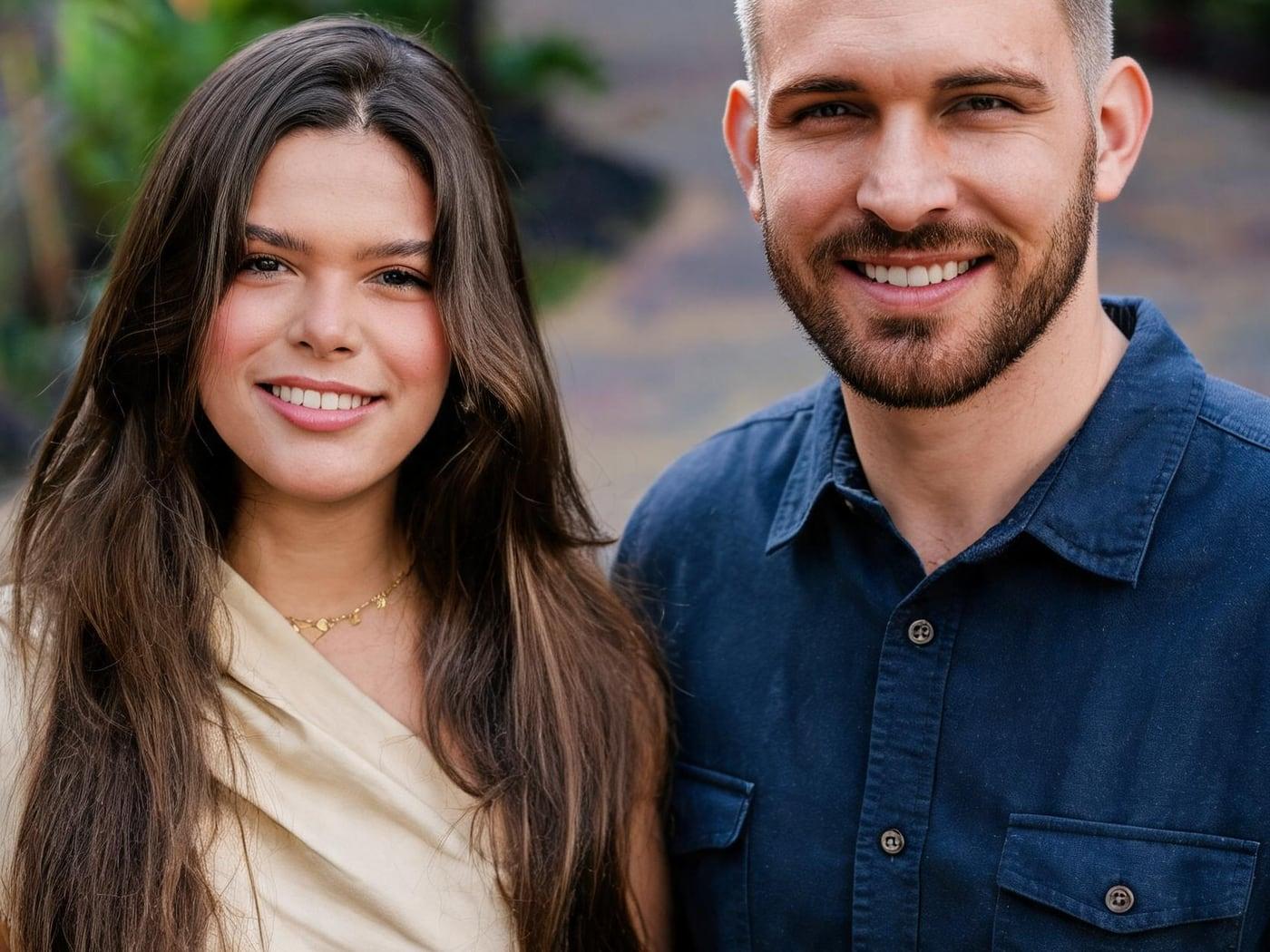

To add someone to a photo, you need two pictures: the photo you want to keep (the base) and a clear photo of the person who was missing. Then you have three options. An AI image combiner redraws the person into the scene for you in about 20 seconds. Photoshop lets you cut the person out and blend them in by hand, with full control but 30 minutes or more of work. A phone can lift a person out of one photo, but you still need a layering app to place them in another. For most people, AI gives the most natural result for the least effort. Whichever you use, the photo looks real only when light, scale and shadows match.
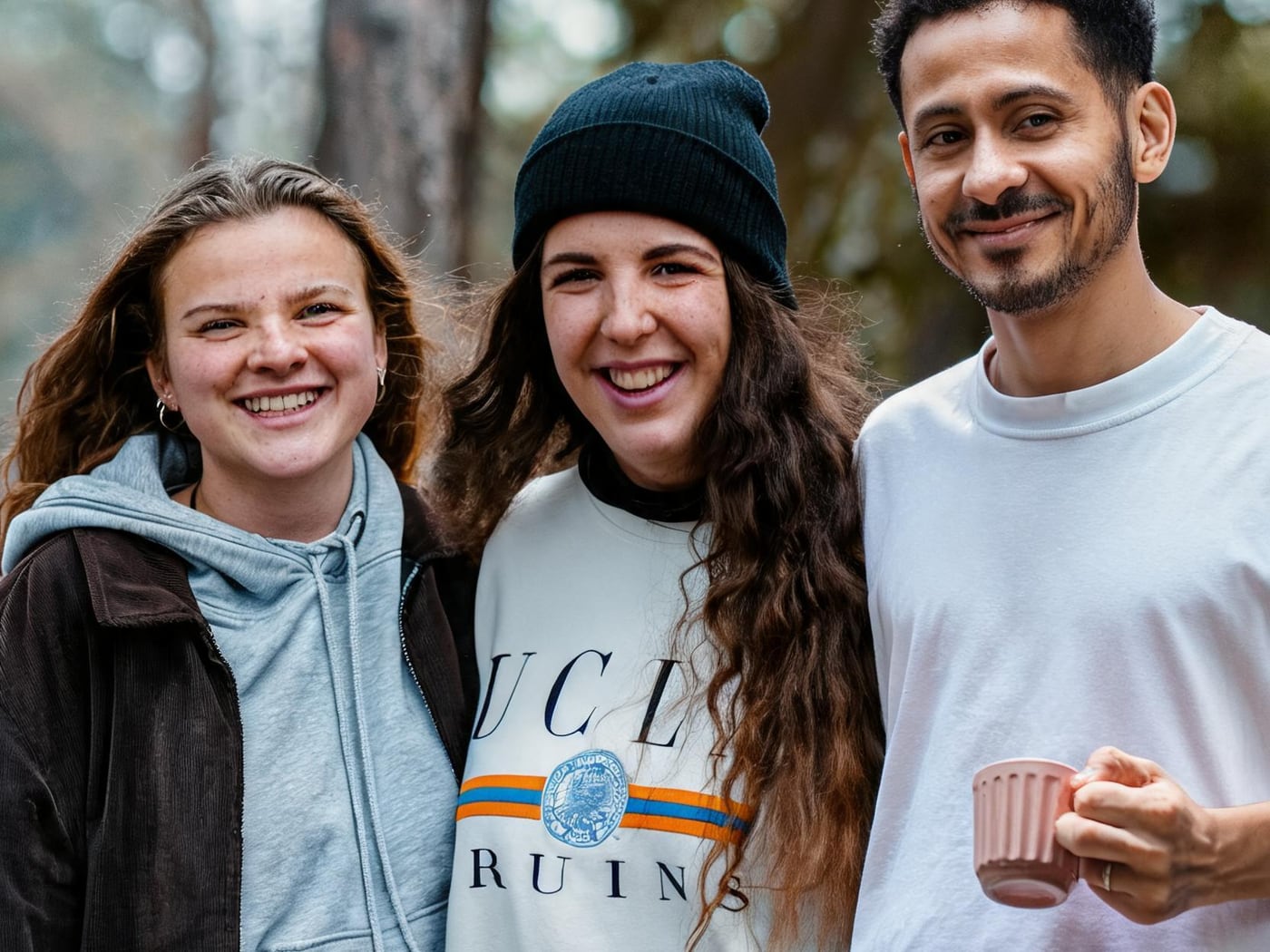
The 3 Ways to Add a Person to a Photo
| Method | Time | Skill needed | Best for | Main drawback |
|---|---|---|---|---|
| AI image combiner | Under a minute | None | Group shots, family photos, adding yourself | Faces can shift slightly, so check likeness |
| Photoshop (manual or Generative Fill) | 30–90 minutes | Intermediate | Pixel-perfect work, keeping the original untouched | Steep learning curve, paid subscription |
| Phone (lift subject + layering app) | 5–10 minutes | Low | Quick, casual edits | Looks pasted on: no matched light or shadows |
The rest of this guide walks through each method, then covers the checks that make any of them look believable.
Method 1: Add Someone to a Photo with AI
An AI image combiner does not cut and paste. It looks at both photos and generates a new image in which the added person stands in the scene, lit by the same light and drawn at a matching size. That is why it handles the parts that are hardest by hand: shadows, edges around hair, and color temperature.
- Choose the base photo. Pick one with a natural gap where another person could stand or sit: the edge of a group, an empty chair, open space beside someone.
- Choose the person's photo. Use a sharp, front-facing photo with the face fully visible and no one else in the frame. Use a full-body shot if the person will stand in a wide scene, and a waist-up photo for a close group.
- Open the Add a Person to a Photo tool. Upload the base photo first, then the person (JPG, PNG, WebP or iPhone HEIC, up to 10 MB each).
- Say exactly where they go. Point to things in the photo: "standing on the far left, next to the woman in the blue jacket" or "sitting in the empty chair on the right."
- Generate at 1K first. It costs 1 credit and the median result takes about 18 seconds, so you can try a few placements cheaply. Re-generate the one you like at 2K or 4K if you plan to print it.
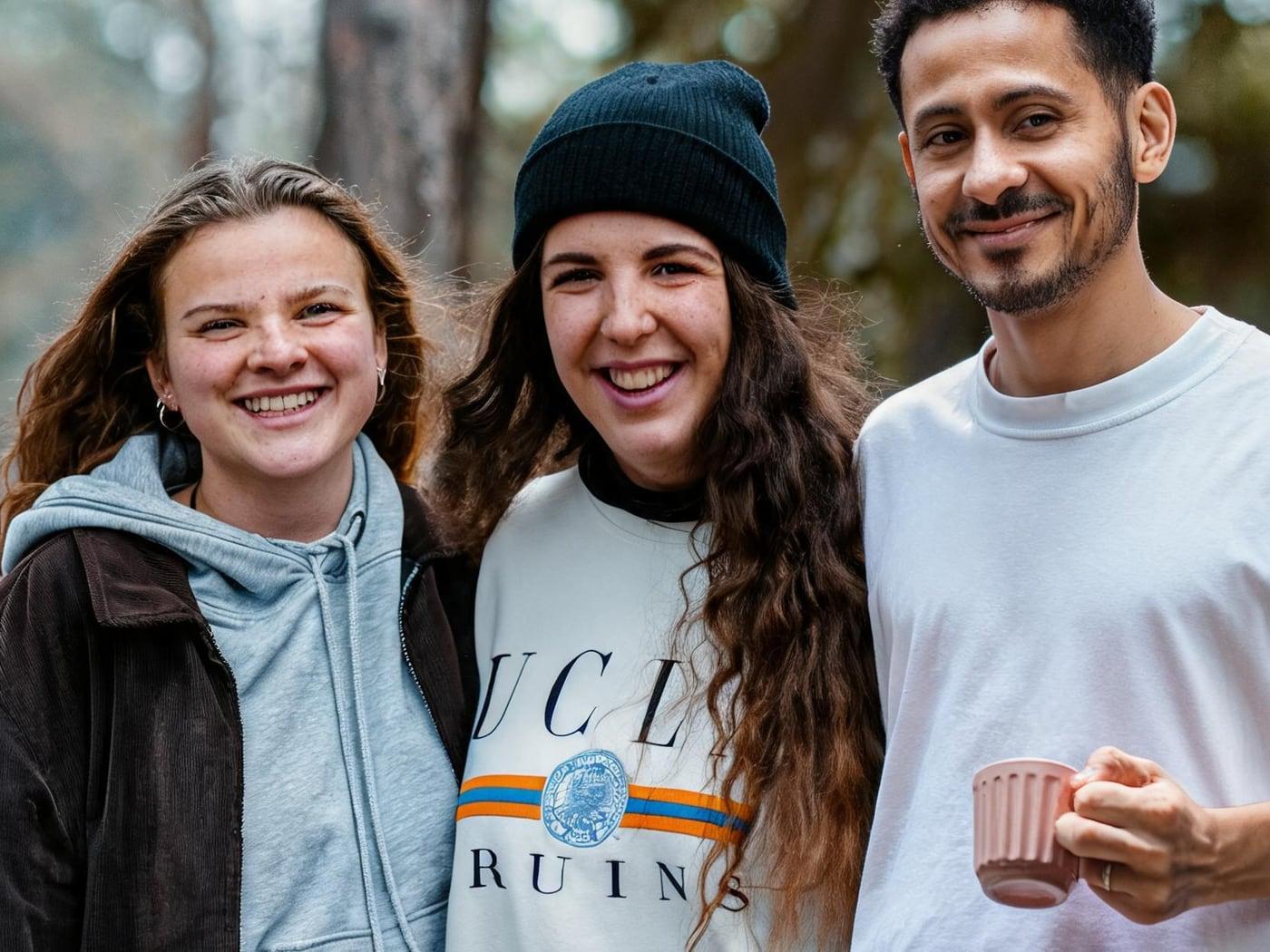
Example: adding a third friend to a photo
The base photo shows two friends outdoors. The second photo is a man photographed separately, in different light. The prompt asked for him to stand beside them.
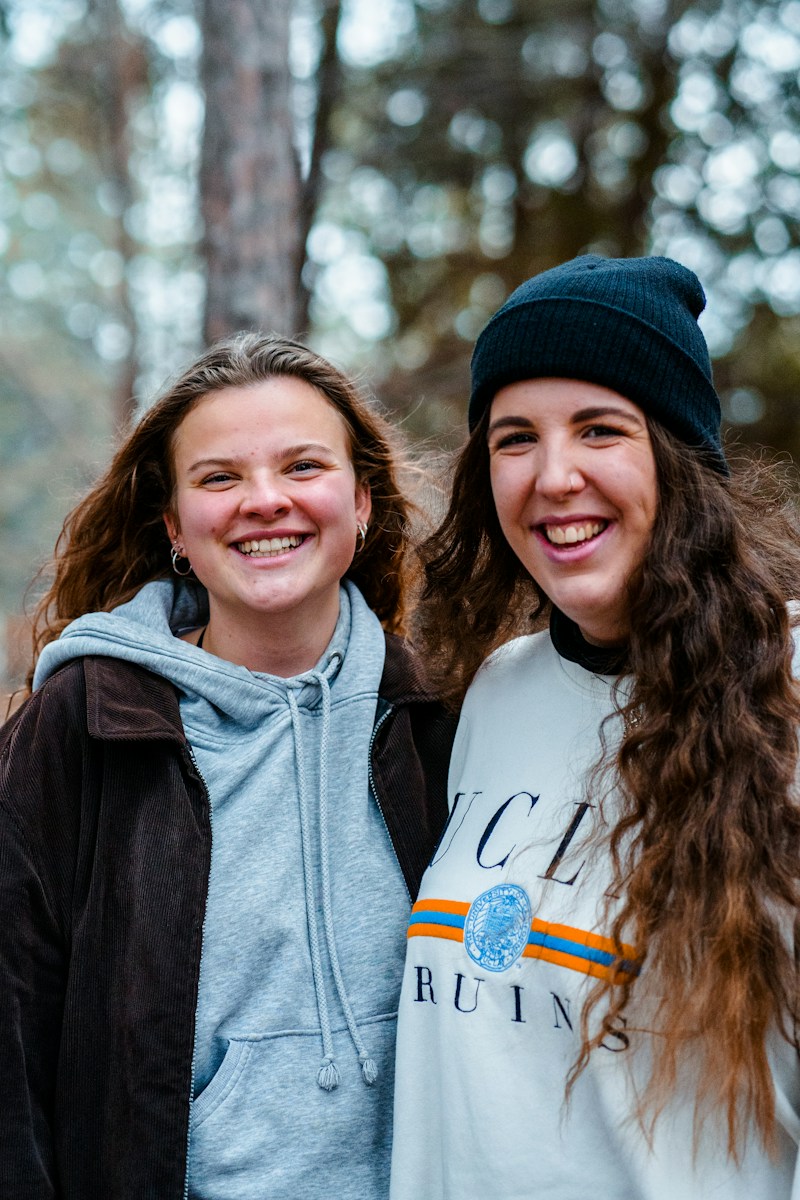
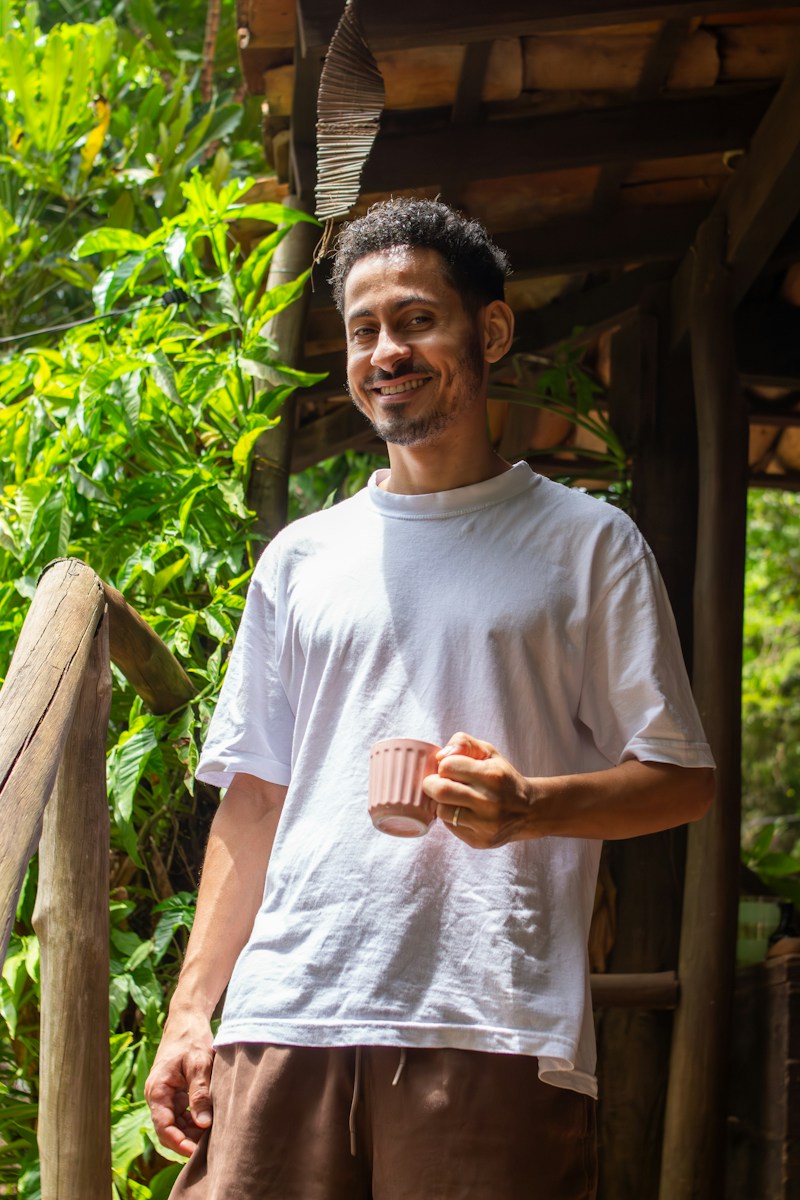
In the result at the top of this guide, he stands beside them in the same daylight and at a believable scale. Before keeping a result like this, compare the two original faces with the base photo too. The AI redraws the whole image, so the people who were already there can change slightly as well.
Source photos: Felipe Souza and Bruno Dias on Unsplash.
Prompts that work
- "Add the man from the second photo standing on the right of the two women, slightly behind them, same daylight, everyone smiling at the camera."
- "Place this person sitting in the empty chair at the end of the table, matching the warm indoor light."
- "Add me to the group photo, standing in the back row between the two tallest people."
Keep it to one position and one light. If the person lands in the wrong place, change only the placement words and try again. Adding more instructions usually makes it worse.
Method 2: Add a Person in Photoshop
Photoshop is the right choice when the original photo must stay pixel-for-pixel untouched, or when you need to control every edge. There are two routes.
The manual route (any recent version):
- Open the person's photo and use Select › Subject, then refine the edge around hair with Select and Mask.
- Copy the selection and paste it into the base photo as a new layer.
- Scale and position it with Edit › Free Transform. Use nearby people's heads and feet as your size reference, not the frame.
- Match color with Image › Adjustments › Match Color, or with a Curves adjustment layer clipped to the person.
- Paint a soft shadow on a new layer under their feet or behind their shoulder, in the same direction as the other shadows in the photo.
- Add a little noise or grain so the person's sharpness matches the base photo.
The Generative Fill route (Photoshop with Adobe's AI features): select an empty area and describe a person. This is good for filling a space with a person, but it invents a new face. It does not add a specific person, so for a real friend or family member you still need the manual route or an AI combiner that takes their photo as input.
Expect 30 to 90 minutes for a convincing manual result. Most of that time goes on hair edges and shadows.
Method 3: Add Someone to a Photo on Your Phone
Phones are good at cutting people out and less good at placing them.
- iPhone: in Photos, touch and hold the person until they lift out, then tap Copy. You can paste that cut-out into an app that supports layers, such as a collage or photo editor, and position it over the base photo. The phone does not match light or add shadows, so the result usually looks pasted on.
- Google Pixel (Add Me): recent Pixel phones have an Add Me feature in the camera. It works only while you take the photo: you shoot the group, swap places with the photographer, and the phone merges the two shots. It cannot add someone to a photo you already have.
- Any phone, in a browser: the AI method above runs in a mobile browser, with no app to install. iPhone HEIC photos upload directly.
How to Make the Added Person Look Real
Whichever method you choose, these are the details people notice first:
| Check | What gives it away | Fix |
|---|---|---|
| Scale | The added head is bigger or smaller than people at the same distance | Compare head height and where feet touch the ground with someone standing next to them |
| Light direction | Their face is lit from the left while everyone else is lit from the right | Pick a source photo with similar light, or name the light in your AI prompt |
| Shadows | No shadow on the ground, or a shadow going the wrong way | Make sure there is a contact shadow under the feet or chair |
| Color temperature | Cool, blue skin in a warm, golden scene | Match color (Photoshop) or regenerate with "same warm light" (AI) |
| Sharpness | One crisp person in a soft or grainy photo | Use a source photo of similar quality, or add grain |
| Camera height | A selfie face next to people photographed from eye level | Use a photo taken by someone else, from about the same height as the base photo |
Common Situations
Adding someone who missed the group photo
The most common case. Choose the base photo where the group left a natural gap, usually an edge. Asking to squeeze someone into the middle of a tight row makes the AI move or cover other people. If you do want them in the middle, say who they should stand between.
Adding yourself to a photo you took
When you are the photographer, you are missing from every shot. Use a photo of yourself taken in similar light (outdoors for an outdoor scene) and ask to be placed at the edge of the group. For two-person shots, the Put Two People in One Photo tool starts from one photo of each person instead.
Adding a loved one who has passed away
This is done often for weddings, graduations and family gatherings. Use the clearest portrait you have, and be gentle with placement: standing beside a parent or at the edge of the family usually feels right. Treat the result as a tribute rather than a real photograph, and talk with close family before sharing it publicly.
Adding someone to a Christmas or holiday photo
December is when the gaps show: someone worked a shift, lives abroad, or the family photo never happened. If you have a group photo, add them at the edge as above. If you only have separate photos, start from a scene instead: the AI Christmas photo template puts people from two photos in front of a decorated tree with warm lights and matching sweaters.
Combining two people from different photos
If neither photo is a "base" and you just want two people together in a new scene, you need a different workflow. See how to combine two photos into one, or for partners, how to make a couple photo from two photos.
Is It OK to Add Someone to a Photo?
Adding a person to your own photos for a family album, a gift or a group chat is fine. Two rules keep it that way:
- Do not present it as a real moment where it matters: as evidence, in news, or anywhere someone could be misled about where a person was.
- Ask before you add someone who would not want to be there, and never use another person's photo to embarrass or impersonate them.
ImageCombiner screens every photo and prompt, and blocks sexual or violent content before any credit is spent.
Frequently Asked Questions
Can I add a person to a photo for free?
Yes. New ImageCombiner accounts get 3 free credits (valid for 30 days), and one 1K image costs 1 credit, with no watermark. After that, packs start at $5.99 for 40 credits. Photoshop needs a paid Adobe subscription. Phone methods are free but look less natural.
Which photo should I upload first?
Upload the base photo (the scene and the people already in it) first, then the person you want to add. The first image sets the setting; the second supplies the new person's appearance.
Why does the person I added look too big or too small?
The AI or your manual scaling misjudged the distance. Use the heads and feet of nearby people as a reference, and give one clear placement such as "standing next to the man in the white shirt, same distance from the camera."
Will the people already in the photo change?
With AI, they can change slightly, because the whole image is generated again. Compare every face with the original before you keep a result, and try again if someone familiar looks different. If the original must stay exactly as it is, use the manual Photoshop route.
Can I add more than one person?
Add one person at a time. Generate with the first person added, download the result, then use it as the base photo for the next person. Each step is easier for the AI than placing two new people at once.
Can I add a person to an old photo?
Yes, if both photos are reasonably clear. Scan prints at a high resolution and without glare. Mention the style in your prompt ("a 1990s film photo, warm faded colors") so the new person matches the old photo's look.
Add Someone to Your Photo
Upload your base photo and a clear photo of the person to the Add a Person to a Photo tool, say where they should stand, and compare a few 1K versions before you pick the one to keep.